How to Remove Vocals in Premiere and After Effects (2026)
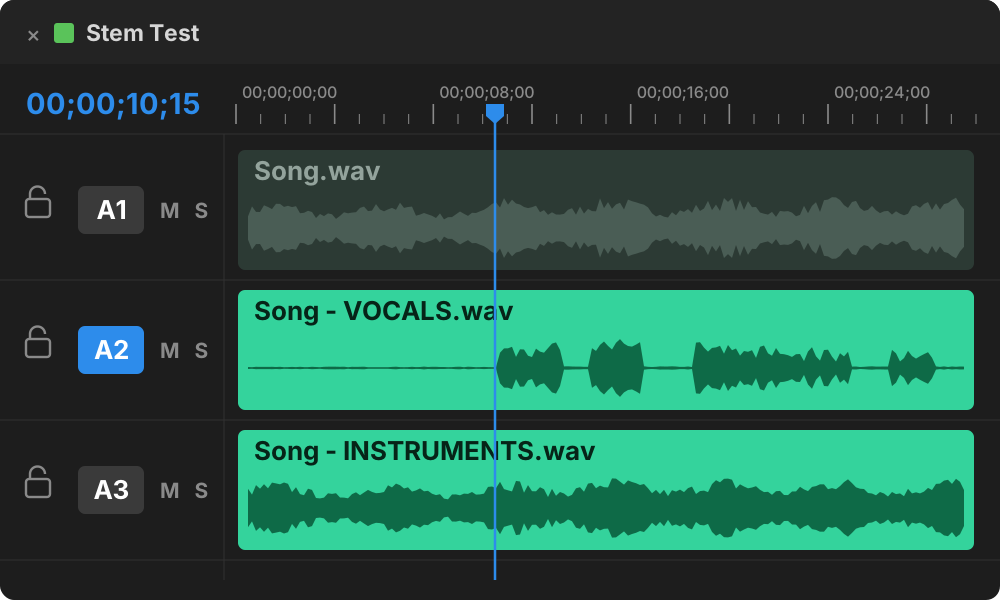
The fastest way to remove vocals in Premiere is a stem splitter that runs inside Premiere. You select the song, click once, and get a Vocals clip and an Instruments clip lined up on your timeline. Without one, the usual workaround is a round trip: export the audio, upload it to a web splitter, download two files and line them back up. Premiere's released tools can turn a singer down, but they can't split a song into vocals and music. And whichever method you use, the instrumental is still the original song as far as copyright goes.
Editors run into this constantly. A lyric fights your voiceover. A music video needs a clean bed under an interview. A client wants the chorus without the singer. This guide covers what Premiere and After Effects can do on their own, the round-trip method, the one-click method, why results sometimes sound watery, and what you can actually publish.
Can Premiere remove vocals on its own?
Not in the released version. Here's what each built-in tool actually does with a song.
- Enhance Speech and Essential Sound clean up dialogue. They can make a voice clearer or duck music under it, but they don't pull a singer out of a song.
- Audition's Center Channel Extractor (right-click the clip, Edit in Adobe Audition) cancels whatever sits in the center of the stereo mix. Lead vocals usually live there, but so do the bass and kick drum, so the instrumental comes back thin.
- Enhance Audio is new in the Premiere beta (version 27.0, announced 2 September 2026). It splits a recording into speech, music, ambience, sound effects and reverb, and the separation runs on your computer. It's built for production dialogue, not songs. One beta tester found that pieces of the sung vocal stayed behind when he lowered the music, and only cleared up when he also pulled down the ambience. It's still a beta, so expect it to change.
After Effects has no built-in way to separate vocals from music.
| Method | Where it runs | Splits a song into vocals and music? | Cost | The catch |
|---|---|---|---|---|
| Enhance Speech | Premiere | No | Included | Made for speech |
| Center Channel Extractor | Audition | Partly | Included with Audition | Only center-panned vocals, thins the low end |
| Enhance Audio (beta) | Premiere beta | Not what it's built for | Included | Dialogue-first, sung vocals can leak |
| Web splitter | Browser | Yes | Per minute or monthly | Export, upload, download, realign |
| SoundXtract | Premiere | Yes | $15.99 to $24.99 a month | Subscription, clip limits |
| VocalSplitter | Premiere and After Effects | Yes, two stems | $79 once | Vocals and instruments only, no drums or bass stems |
| StemSplitter | Premiere and After Effects | Yes, six stems | $99 once | Six tracks to manage if you only need the vocals gone |
Method 1: the round trip with a web splitter
This works with nothing to install. It just takes a few hops.
- Export the song as a WAV. Use the original song file if you have it, not a section of your sequence. A full, uncompressed source separates cleaner and is easier to line back up.
- Upload it to a splitter site and choose vocals and instrumental.
- Preview both files before you download. Listen to the busiest chorus, where vocals overlap the most instruments. That's where separation breaks first.
- Download both stems as WAV. Many free tiers only give you compressed MP3s.
- Import them into Premiere and place each stem on its own track, starting at exactly the same frame as the original song. Then mute or disable the original.
The catch is step 5 on every song, every revision. If the client swaps the track, you do the whole trip again. And the song leaves your computer, which some clients and NDAs don't allow.
Method 2: one click inside Premiere or After Effects
This is what VocalSplitter does.
- Install VocalSplitter from aescripts with the aescripts manager app.
- Open the VocalSplitter panel in Premiere or After Effects.
- Select the song clip in your timeline.
- Click Split Stems.
- Two new clips appear. Vocals and Instruments land on the tracks below the original, starting at the same point. The original is switched off, not deleted, so you can always go back.
Nothing gets exported, uploaded or realigned. The song stays on your machine, and the stems are ordinary clips you can cut, fade and mix like anything else.
Why the instrumental sounds watery or thin
A finished song isn't stored as separate parts. Every vocal remover is making an educated reconstruction, and the artifacts you hear are where it guessed wrong.
- Overlapping frequencies. Where a voice shares space with a guitar, a synth pad or a cymbal wash, the model has to decide which side that sound belongs to. Wrong calls become the watery smear.
- Reverb tails. The echo of a voice is still a voice, so heavy vocal reverb is hard to remove cleanly.
- Loud masters. Heavily compressed modern mixes give the model less room to tell parts apart.
- Compressed files. A YouTube rip or low-bitrate MP3 adds artifacts the model can mistake for music.
To get the cleanest result, start from a WAV or the highest-quality file you have, and check the densest chorus before you commit. Be realistic, too. The goal is a split that works for your edit, not a studio multitrack.
Can you use the song after removing the vocals?
Removing the vocals doesn't remove the copyright. The instrumental is still the same recording and the same composition, just with a part muted. YouTube's Content ID matches instrumentals against the original, so a split song gets claimed like the full one.
The split is fine when you already have the rights: music the client licensed, a library track, your own song, or a release whose terms allow it. If you couldn't publish the original song in your video, you can't publish the instrumental either. This isn't legal advice, so check the license on anything that matters.
Frequently asked questions
Can Premiere Pro remove vocals from a song? Not fully with its released tools. Enhance Speech cleans dialogue and Audition's Center Channel Extractor reduces center-panned vocals. To split a song into clean vocals and music, you need a stem splitter, either a website or an extension like VocalSplitter.
How do I isolate vocals in Premiere? The same split gives you both sides. VocalSplitter creates a Vocals clip and an Instruments clip, so muting the Instruments clip leaves just the singer.
Can I remove vocals in After Effects? Not with built-in tools. VocalSplitter works in After Effects as well as Premiere.
Is there a free way? Yes. Free web splitters and Audacity can do it, with limits on file length, compressed downloads on free plans, and the export round trip.
Does VocalSplitter upload my audio? No. It runs on your computer, so the song never leaves your machine.
Is it a subscription? No. It's $79 once.
Does it change my original clip? No. The original is switched off, not deleted.
Can it split drums, bass or other instruments? No. VocalSplitter makes two stems: Vocals and Instruments. For every instrument on its own track, StemSplitter splits a song into six stems: vocals, drums, bass, guitar, piano and other. See how to separate stems in Premiere.
Sources
- Adobe: Now in Beta, Enhance Audio in Premiere
- Adobe Community: separating dialog from background music (Center Channel Extractor)
- U.S. Copyright Office: Circular 14, derivative works
- YouTube Help: How Content ID works
Adobe, Premiere and After Effects are trademarks of Adobe. vogeledits is not affiliated with Adobe. Prices checked 17 October 2026.