How to Rename Multiple Clips in Premiere Pro (2026)
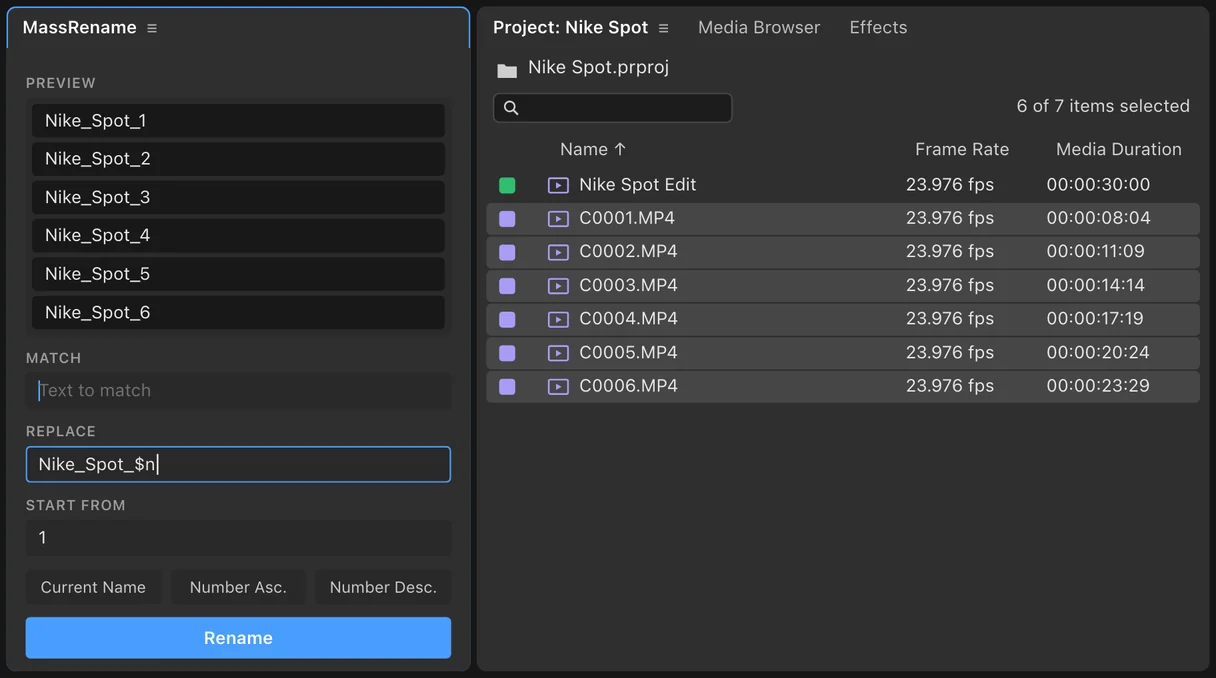
Premiere Pro can only rename one clip at a time. There's no batch rename in the Project panel, so to rename many clips at once you either rename the files before you import them, rename them on disk and relink, or use a batch rename panel inside Premiere. MassRename is that panel: select the clips, type a pattern, see every new name update as you type, and click Rename. One undo puts them all back.
It comes up on every big job. Camera cards full of C0001.MP4. Thirty exports called FINAL, FINAL_2 and FINAL_ACTUAL. A delivery spec that wants Client_Spot_01 to Client_Spot_30. This guide covers the built-in way, the two workarounds, the one-panel way, and what breaks when you rename the wrong thing.
Can Premiere rename multiple clips at once?
No. In the Project panel you rename one item at a time: click the name, or right-click and choose Rename, type, press Enter, move to the next. Adobe's own help describes renaming a single clip, and Premiere has no find-and-replace or numbering for names.
Renaming in the Project panel changes the name Premiere shows. It doesn't rename the file on your drive, so your media stays linked. That's what you want most of the time, and it's what a batch rename panel does too.
After Effects is the same: the Project panel and the layer list rename one item at a time.
| Method | Renames | Links stay intact? | Speed | The catch |
|---|---|---|---|---|
| One at a time in Premiere | Project items | Yes | Slow | Every clip by hand |
| Rename files before import | Files on disk | Yes, if done first | Fast | Only works before you start |
| Rename on disk, then relink | Files on disk | No, media goes offline | Slow | Relink every clip |
| MassRename | Project items, and AE layers | Yes | One click | Project names, not file names |
Workaround 1: rename the files before you import
If you haven't imported yet, rename the files in your operating system first.
- Mac: select the files in Finder, right-click, choose Rename. You can replace text, add text, or format names with a counter (Spot_01, Spot_02).
- Windows: select the files in File Explorer and press F2. Typing one name gives you Name (1), Name (2) and so on. Microsoft's free PowerToys adds PowerRename for find and replace.
- Adobe Bridge: Tools, Batch Rename handles patterns, counters and metadata in one dialog.
Then import. Premiere sees the new names from the start.
Workaround 2: rename on disk after import (and relink)
If you rename files that are already in a project, Premiere loses track of them and marks them offline. You then relink each one: right-click, Link Media, find the renamed file. Premiere can find the rest of a folder automatically if the names still match its records, but after a rename they don't, so you end up pointing at files one by one.
Only rename on disk mid-project when the files themselves must carry the new names, for a hand-off or an archive. For names inside your project, rename in Premiere.
The one-panel way: MassRename
- Install MassRename with the free aescripts + aeplugins Manager app and open the panel.
- Select the clips in the Project panel (in After Effects, project items or layers in a comp).
- Type the pattern. Match part of the current name and type what it becomes, or replace the whole name. In the Replace field,
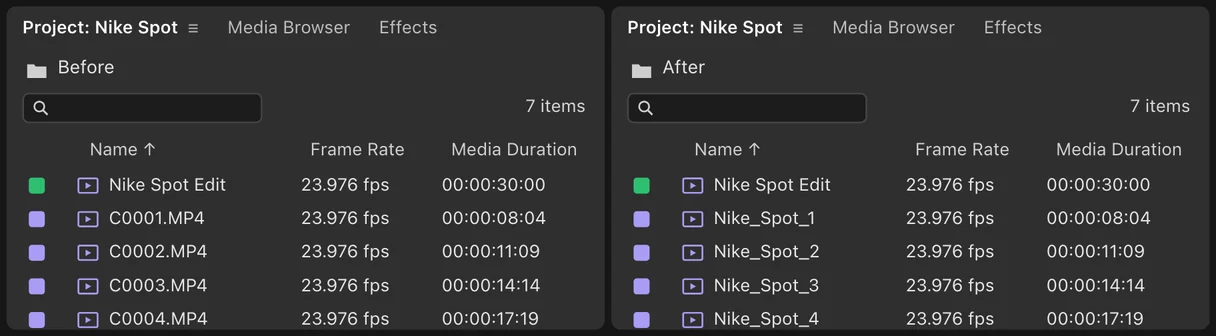
$ncounts up from the Start from number,$Ncounts down, and$&keeps the current name, soNike_Spot_$ngives Nike_Spot_1, Nike_Spot_2 and so on. - Check the preview. Every new name updates as you type, so you see exactly what each clip will be called.
- Click Rename. One undo reverts the whole batch.
A naming pattern that sorts properly
- Pad your numbers. Spot_01 to Spot_30 sorts in order. Spot_1 to Spot_30 puts Spot_10 before Spot_2.
- Biggest group first. Client_Project_Scene_Take reads and sorts better than Take_Scene_Client.
- No spaces or special characters in names that will become file names on export. Underscores survive every system.
- Keep the camera name somewhere (in the name or in metadata) so you can still find the original file on the card.
Project names and timeline names
Premiere keeps a clip's name in the Project panel and its name on a timeline as two things. Editors on the Adobe Community report that renaming in the Project panel doesn't always update clips already cut into a sequence, and multicam clips are a known exception. Rename your clips before you start cutting, and new instances will carry the new names.
Frequently asked questions
Can you batch rename in Premiere Pro? Not with built-in tools. Premiere renames one Project panel item at a time. A panel like MassRename adds batch rename with a live preview.
Does renaming a clip in Premiere rename the file? No. It only changes the name in your project, so the media stays linked. To rename the files themselves, rename them on disk before import, or relink afterwards.
Can I undo a batch rename? In MassRename, yes: one undo reverts the whole batch.
Does it work in After Effects? Yes. MassRename renames project items in Premiere Pro and After Effects, and layers inside an After Effects composition.
Is it a subscription? No. MassRename is a one-time purchase.
Sources
- Adobe Community: renaming clips in the Project panel doesn't update the sequence
- Adobe Community: renaming a file that's already used in Premiere
- Larry Jordan: Find and rename media in Premiere Pro
- Microsoft: PowerToys PowerRename
Adobe, Premiere, After Effects and Bridge are trademarks of Adobe. Figma is a trademark of Figma, Inc. vogeledits is not affiliated with Adobe or Figma.